
Let's Code
Follow the steps below:
- Create a New file in PictoBlox.
- If you are working on Windows, macOS, or Linux:
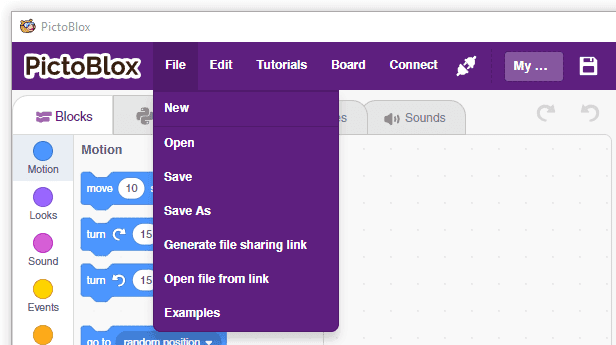
- Open PictoBlox and create a new file
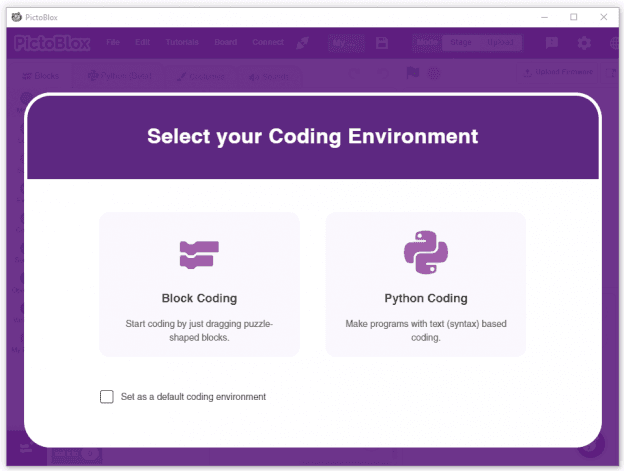
- Select the coding environment as Block Coding.
- Follow the step if you are working on Android or iPhone:
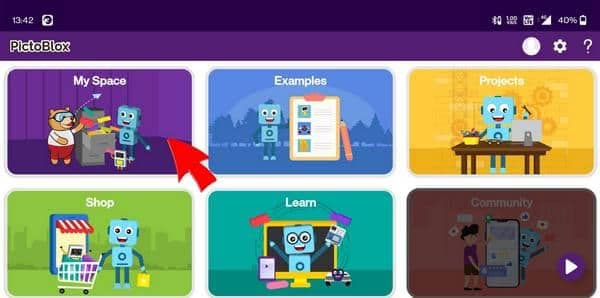
- Open PictoBlox App and select My Space Tab from the home screen
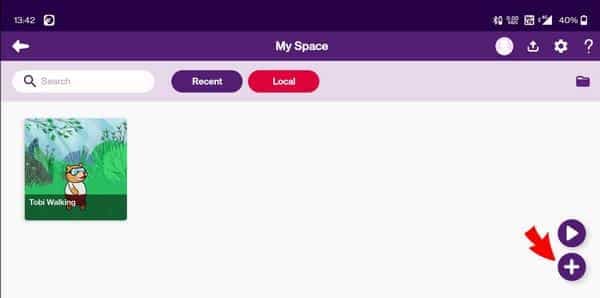
- Click on + sign to create a new file.
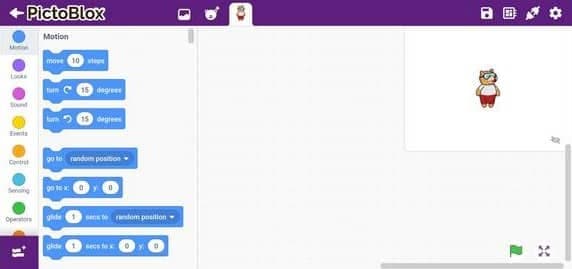
- A new file should be created like this
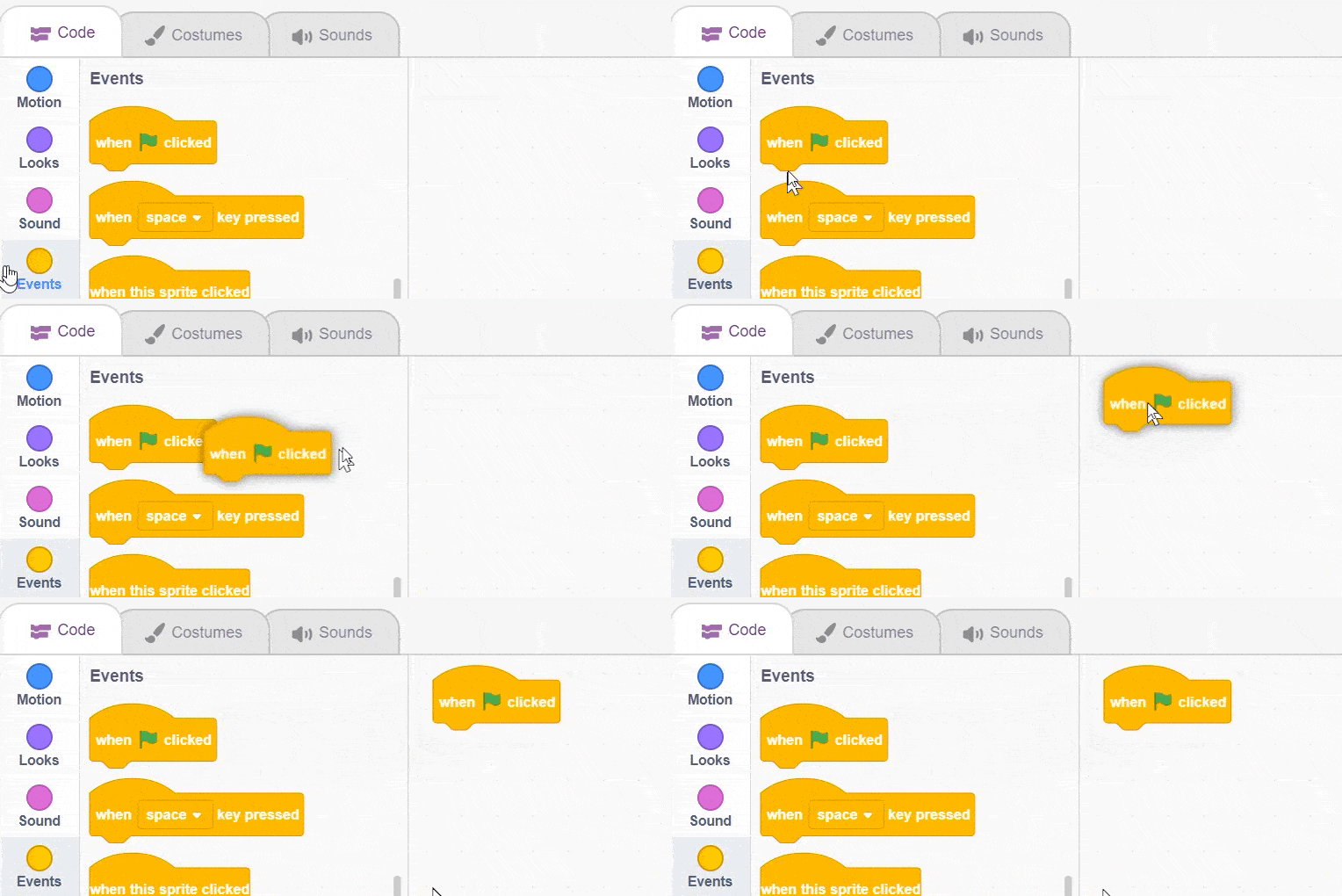
- Open the Events palette and drag and drop the when flag clicked block into the scripting area. The when flag clicked block is a special type of block called hat block. It is used to start a script. Using this particular hat block you can run the script by clicking on the green flag above the stage.
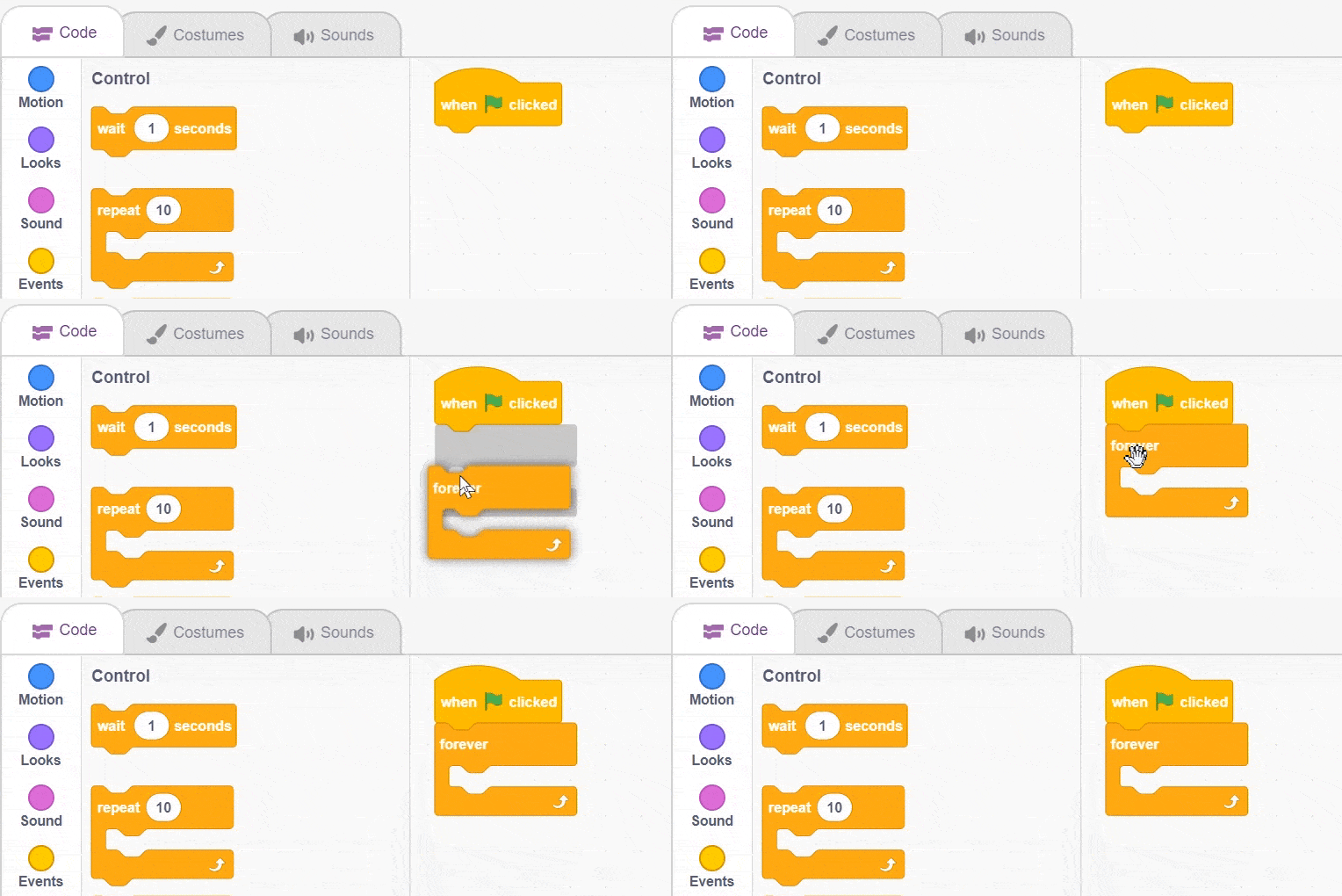
- Next, open the Control palette and drag and drop the forever block below the when flag clicked block.

- This block is used when you want a set of blocks to keep running until the script is stopped manually.
- Then, open the Motion palette and drag and drop the move () steps block inside the forever block.
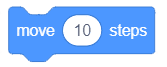
- This block is used to move the sprite by a specified number of steps. In our case, it is 10.
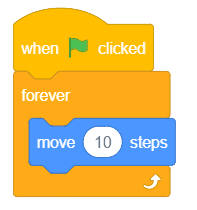
- Next, open the Control palette and drag and drop the wait () seconds block below the move () steps block and change the delay value to 0.1 seconds. The wait block is used to pause/delay the script execution by the specified time.
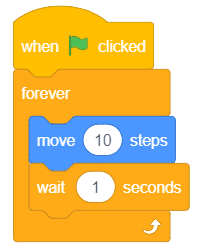
- Run the script by clicking the green flag. What just happened? Where did Tobi go?! As it seems, he went out of the frame. Let's fix this so that Tobi doesn't wander off again.
- Open the Motion palette and drag and drop the if on edge, bounce block inside the forever block.

- This block detects whether the sprite has touched the edge of the stage or not and changes the direction if it has.
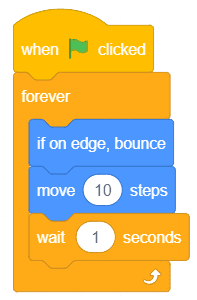
- Run the script by clicking the green flag. What is happening to Tobi now? Is he upside-down? To stop this, you must change the rotation style.
- Go to the Motion palette and drag and drop the set rotation style () block below the when flag clicked block and select left-right from the drop-down.
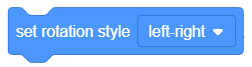
- The script is now complete! Run it by clicking the green flag.
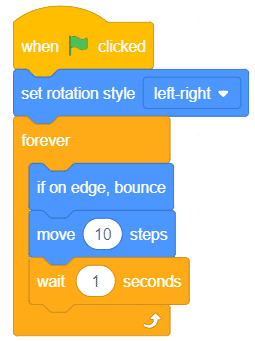
- Yay! You've just completed your first script! Pat yourself on the back.
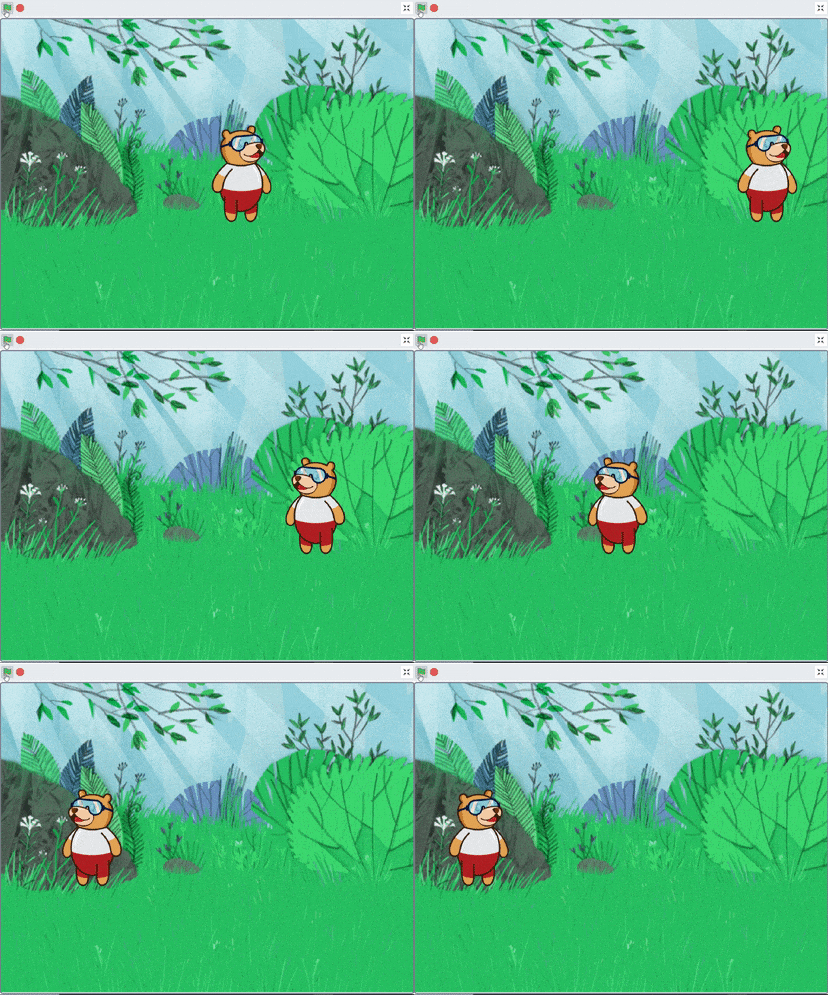
Saving The Program
- To save the program, click on File > Save As.
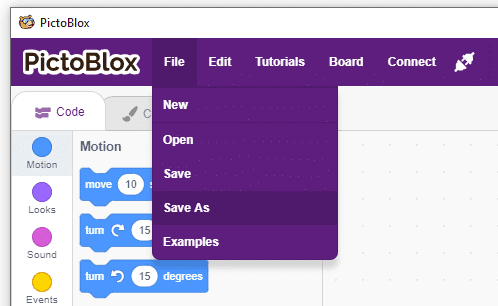
- A window will popup. Choose the location as Desktop or any other relevant folder. Name the file Tobi Walking.
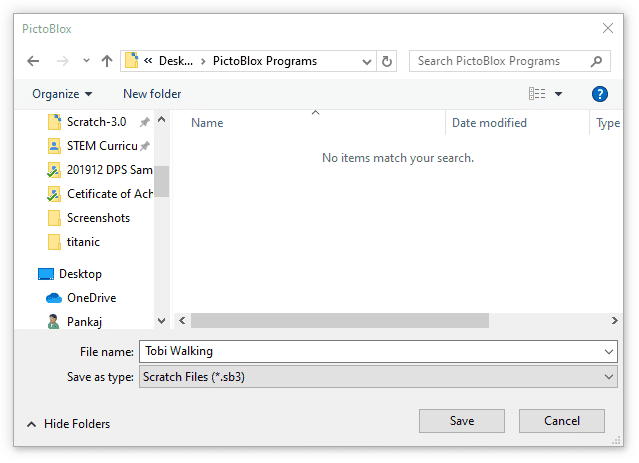
- Click on Save.
.webp&w=3840&q=75)
.webp&w=3840&q=75)
.webp&w=3840&q=75)
.webp&w=3840&q=75)
.webp&w=3840&q=75)