
Getting Started with PictoBlox
Animations are created, when a set of images changes quickly and repetitively creating a sense of motion.
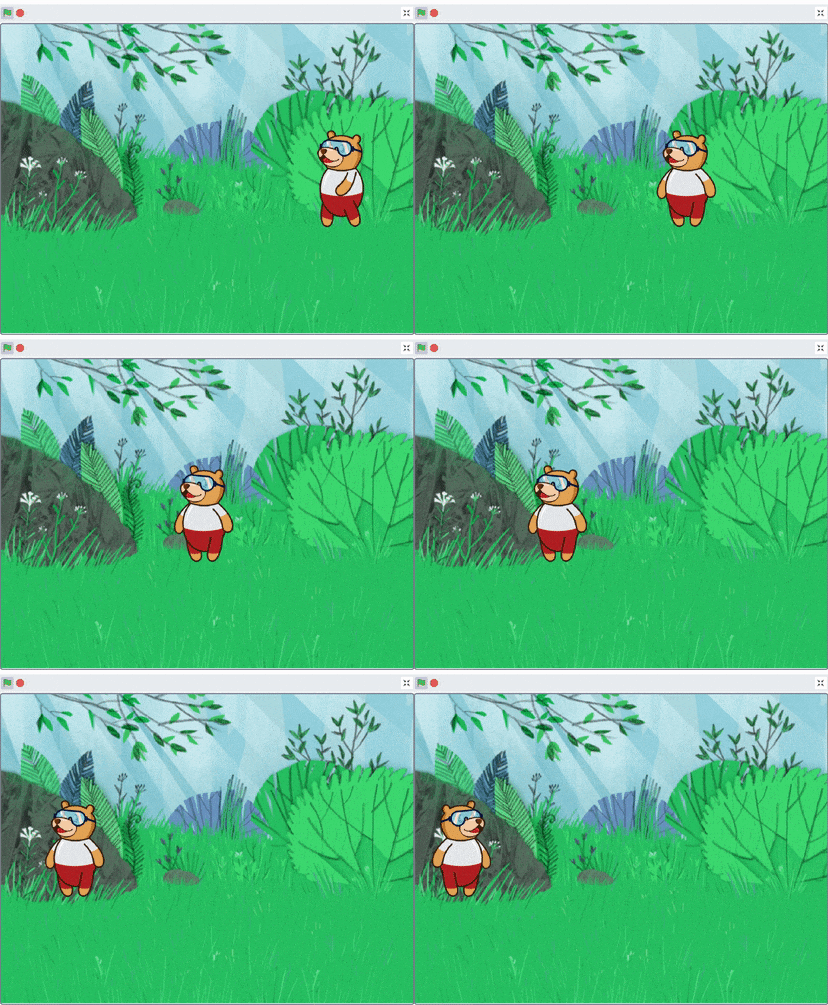
In this activity, we will make Tobi walk.
- We will continue the script from the Backdrop topic.
- Create the Tobi Walking script made in lesson 1.
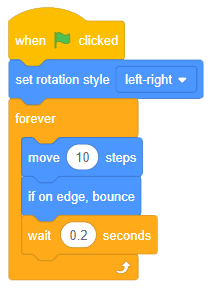
You can make more than one scripts run simultaneously in one program.
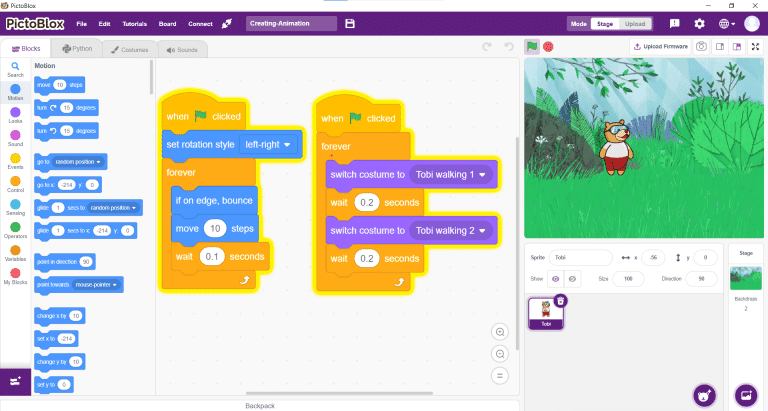
To change a sprite's costume, PictoBlox has the switch costume to () block available in the Looks tab.

To make a walking animation of Tobi switch between the following two costumes Tobi:
- Tobi Walking 1
- Tobi Walking 2
Make the script shown below. You will find the blocks used in the mentioned palettes:
- When flag clicked - Event
- Forever - Control
- Switch costume to () - Looks
- Wait () seconds - Control
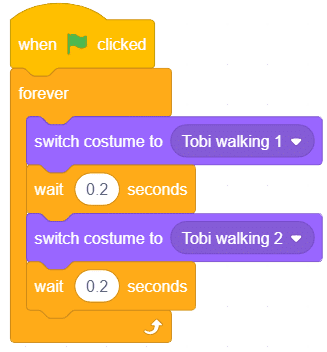
Click the green flag to start the animation.
- If you think that Tobi is changing costumes slowly, then you can change the speed by changing the delay. Try changing it to 0.1, 0.2 & 0.3 seconds. Which of the above values do you find most appropriate?
- To make Tobi walk from one end of the Stage to the other, make the script you made in the previous lesson.
Congratulations on making your first animation! It was fun, wasn't it? Now, let's get on with the course. Save the file with the name Animating Tobi.
.webp&w=3840&q=75)
.webp&w=3840&q=75)
.webp&w=3840&q=75)
.webp&w=3840&q=75)
.webp&w=3840&q=75)